You can customize the information displayed in a portfolio by selecting which
columns are displayed for each holding. You can also choose to view or
hide a portfolio's summary information.
Selecting columns
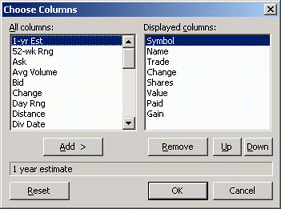
By default, TakeStock displays the following information about each holding
in a portfolio: symbol, company or fund name, last trade value, change from
previous close, number of shares held, the holding's total value, amount
paid and net gain.
To choose the columns you want to display, select View | Choose Columns.
TakeStock displays the "Choose Columns" window.
-
To add a column, highlight it in the "All columns" box and click Add.
The column will be inserted after the column currently highlighted in the
"Displayed columns" box.
-
To hide a displayed column, highlight it in the "Displayed columns" box and
click Remove. To change the position of a column, click Up
or Down.
-
To reset the displayed columns to TakeStock's defaults, click Reset.
Summary information
TakeStock displays a portfolio's summary below the list of holdings.
To view the summary, check the Show portfolio summary box.
The summary pertains to all holdings in the portfolio. To restrict
the summary to currently selected holdings, check the For selected items only
box.

The portfolio's summary includes its current total value, change since the
last trading day's close, and net gain. TakeStock also displays your
equity, the portfolio's marginable equity, the margin owed and the amount
of margin available.
|
